Home / How to / How to Print Collated Page Sets Across Multiple PDF Files
How to Print Collated Page Sets Across Multiple PDF Files
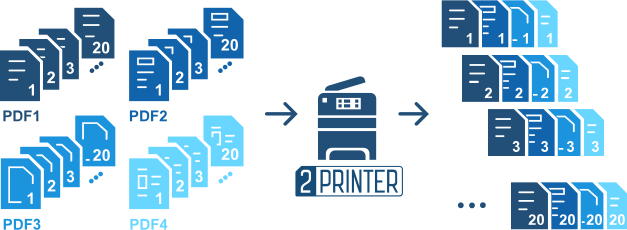
Sometimes printing workflows require printing of collated page sets across multiple files. This approach is especially useful when assembling personalized document sets, packets, or kits.
In this article, you’ll learn how to automate collated, page-by-page printing from multiple PDF files using a simple 2Printer command-line script.
Use case
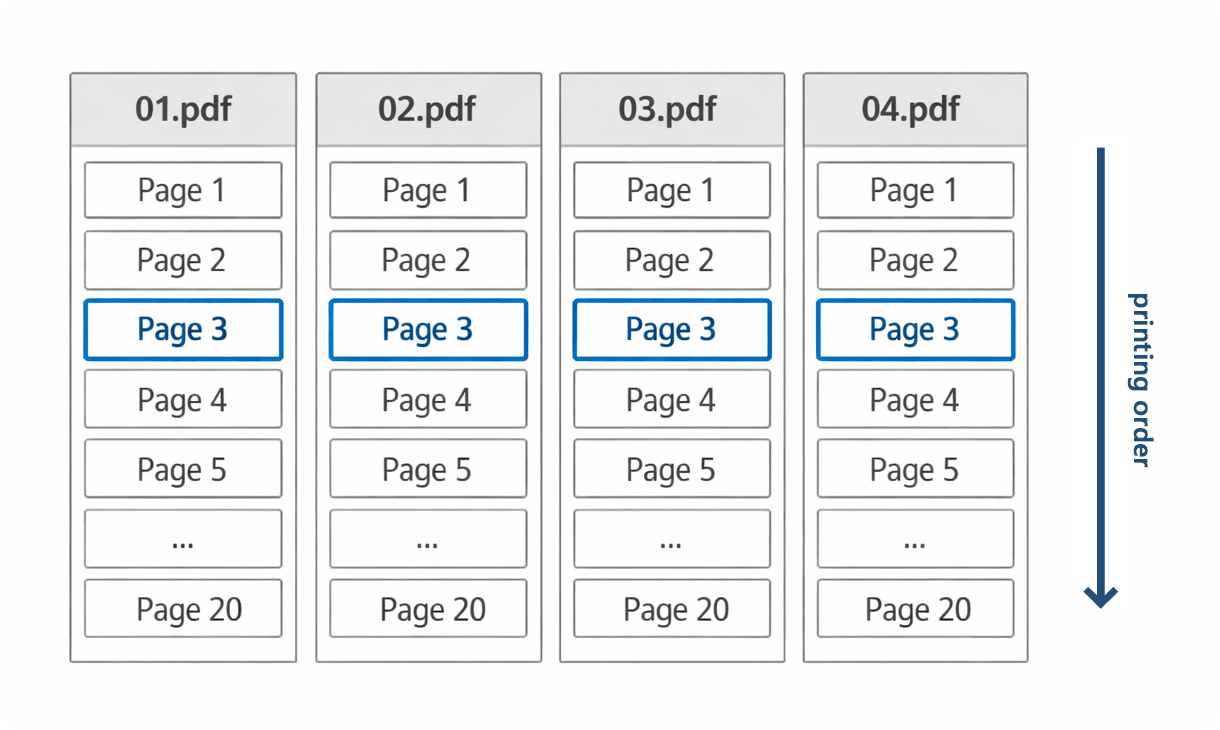
For example, you might have several personalized PDF documents that are 20 pages long. Instead of printing them individually, you may need to print Page 1 of all documents, then Page 2 of all documents, and so on, to assemble specific packets or kits efficiently.
Customer's request:
I have 4 documents in PDF format, each with 20 pages:
01.pdf
02.pdf
03.pdf
04.pdf
It is important that all documents are personalized, so the order of the pages must be consistent so that 4-page packets are printed in a sequential order. As a result, I want to find them in the printer assembled in such a way that I can then put them together in "packs of four" and put them into envelopes.
Setting up page-by-page printing across multiple documents with 2Printer
Manually creating a list in TXT format and scripting command lines for every single page would be tedious and difficult to maintain. For example:
Instead, you can automate this task using a simple FOR loop in a Windows Batch file (BAT or CMD).
Solution: Use a FOR Loop command
You can create and run a batch script (.bat or .cmd) that iterates through the page numbers automatically:
Prepare your file list by creating a text file (e.g., list.txt) containing full paths to the filenames of the documents you want to print. Tip: How to create a list with file paths
Create the Batch script. Copy the script below and save it as a .bat file (e.g., print_packets.bat).
FOR /L %%i IN (1, 1, 20) DO ( 2printer.exe -src @"list.txt" -prn "Your Printer Name" -props pages:%%i spjob:yes )
The FOR loop script forces running the print command specifically for page %%i (current number in the loop) across the entire list before moving to the next page.
How it works
FOR /L %%i IN (1, 1, 20): This command starts a loop.
The first number (1) is the starting page.
The second number (1) is the step (increment by 1 page at a time).
The third number (20) is the final page number (adjust this to match the length of your documents).
-src @"list.txt": Tells 2Printer to process all files listed in your text file during this iteration.
-props pages:%%i: This is the key variable. %%i is replaced by the current number in the loop. In the first run, it prints Page 1 of all files; in the second, Page 2, and so forth.
spjob:yes: This ensures that the batch of pages for that specific iteration is sent to the printer as a single print job, keeping the queue organized.
This method allows you to print complex, collated sets of documents with a single script execution, saving you from writing many individual command lines.

 Tip: How to create a list with file paths